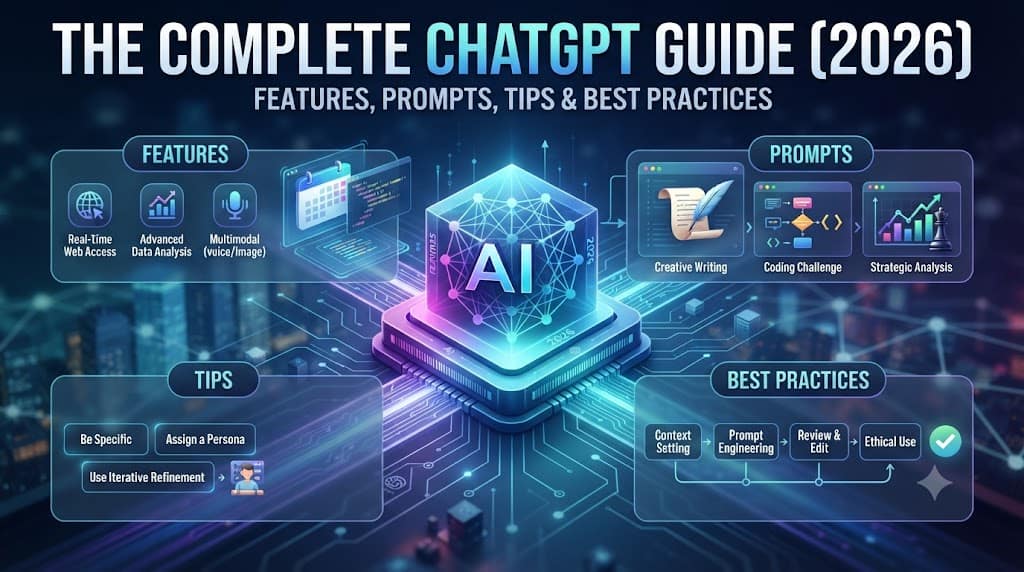
The Complete ChatGPT Guide gives you the edge you need because most people open ChatGPT, type a one-line question, get an answer that’s “fine,” and move on — never realizing they’re using maybe 20% of what the tool can actually do. That gap between “fine” and “genuinely useful” isn’t about needing a smarter model; it’s about not knowing which features exist, how the current model lineup works, and how to phrase a prompt so ChatGPT stops guessing what you want. This guide fixes that. Below you’ll find a complete, up-to-date walkthrough of ChatGPT in 2026 — the features worth using, the models to pick between, and the prompting habits that consistently turn average output into work you’d actually publish or ship.
What Is ChatGPT? A Quick Overview
ChatGPT is OpenAI’s conversational AI assistant, built to handle writing, research, coding, data analysis, and increasingly, multi-step tasks that used to require several separate tools. Since its 2022 launch, it has grown from a novelty chatbot into what became the world’s most downloaded app in The Complete ChatGPT Guide 2025, reportedly passing 770 million downloads. That growth came with real product maturity: today’s ChatGPT reads images and spreadsheets, browses the live web with citations, generates images, remembers facts about you across sessions, and can reason through multi-step problems instead of just predicting the next likely sentence.
The core idea to internalize before anything else: ChatGPT is a collaborative assistant, not a vending machine. It performs best when you treat it like a capable junior colleague — one who needs context, a defined role, and feedback — rather than a search engine you expect to read your mind.
ChatGPT Models Explained: Which One Should You Use?
The model picker used to be genuinely confusing. Through 2025, users had to choose between GPT-4o, GPT-4.1, GPT-4.5, o1, o3, o3-pro, and o4-mini, with little guidance on which fit which task. OpenAI simplified this in 2026: every active model now belongs to the unified GPT-5 family, and the GPT-4 series and o-series have been retired from the consumer app (Business, Enterprise, and Edu plans kept GPT-4o available in Custom GPTs only until early April 2026).
As of mid-2026, the practical picture looks like this:
- Instant models (GPT-5.3 Instant and newer): The fast, everyday default for quick questions, drafts, emails, and routine tasks. Available on every plan, including Free.
- Thinking models: Used when a task needs deeper reasoning: multi-section articles, research synthesis, complex debugging, or anything where the output has to stay coherent over a long response. Thinking models plan before writing, so a 2,000-word piece doesn’t drift off-topic halfway through.
- Pro models: The top tier, reserved for the hardest, longest, highest-stakes tasks.
The GPT-5.6 family (Sol, Terra, Luna) is the current frontier line as of July 2026, with Sol as the flagship, Terra as the balanced mid-tier, and Luna as the cheapest option in the frontier lineup.
A useful mental shortcut: Pick Instant for speed, Thinking for structure and accuracy, and let the automatic router decide when you’re not sure — selecting Instant now often lets ChatGPT silently escalate to deeper reasoning on its own when a question calls for it.
Core Features Every User Should Know
ChatGPT’s feature set has expanded well past the original chat box. Here’s what actually matters day-to-day:
| Feature | What It Does | Why Use It |
| Custom Instructions | Tell ChatGPT your role, goals, and preferred tone once in Settings. | Applies context to every future conversation automatically. |
| Memory | Retains facts about you across sessions (Settings → Personalization). | Remembers your job, writing style, or ongoing projects without re-explanation. |
| Projects | Group related conversations under one roof with shared files and instructions. | Perfect for organizing specific workflows like running a blog or managing a client. |
| Canvas | A side-by-side collaborative editor for writing and code. | Revise documents together instead of regenerating from scratch. |
| Advanced Data Analysis | Upload a spreadsheet or CSV and ask questions in plain English. | Get calculations, cleaned tables, and charts back without formulas. |
| Web Browsing | Real-time search with source citations. | Resolves knowledge cutoff issues for current-events questions. |
| Image Generation | Built-in image creation directly in the chat window. | Strong layout and instruction-following for visual assets. |
| Voice Mode | Real-time, natural-sounding voice conversation. | Great for language practice, interview prep, or brainstorming on the go. |
| GPT Store | Library of specialized, pre-configured GPTs by OpenAI and third parties. | Faster than building custom instructions from scratch for specific tasks. |
| Scheduled Tasks | Ask ChatGPT to do something once at a set time or recurringly. | Automates reminders or routines without manual prompting. |
How to Get Started With The Complete ChatGPT Guide
Getting set up takes minutes:
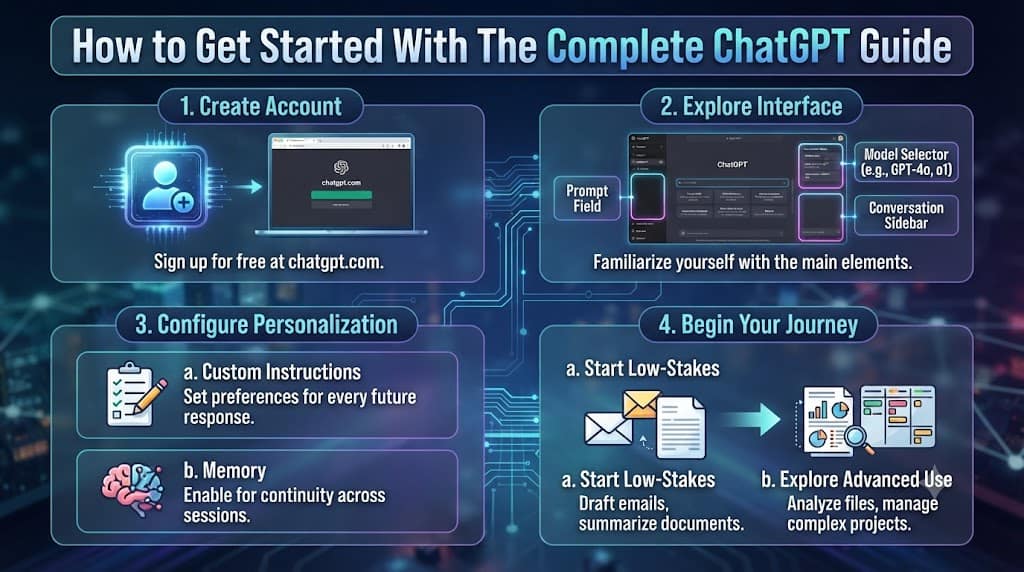
- Create a free account and log in at chatgpt.com.
- Familiarize yourself with the three main interface elements: the prompt field, the model selector, and the conversation-saving sidebar.
- Set up Custom Instructions immediately — this single step improves nearly every future response.
- Turn on Memory in Personalization settings if you want continuity across sessions.
- Start with low-stakes tasks (an email draft, a summary of a document) before moving to complex, multi-step projects.
From there, explore what the app can do for you specifically: drafting and editing written content, analyzing an uploaded file, or building a structured plan for a larger project. For more advanced workflows, you can check out our internal guide on Advanced Web Optimization. Power users also connect ChatGPT to external tools like Gmail, Google Calendar, or Slack, turning it from a chat window into a genuine workflow automation layer.
How to Write Prompts That Actually Work
This is where most of the “fine but not great” output problem gets solved. The difference between a weak prompt and a strong one usually comes down to how much guesswork you leave for the model.
A weak prompt like “write a blog post about how to make money with AI” leaves ChatGPT to guess your audience, your desired length, your tone, and what to include. A stronger version removes that guesswork:
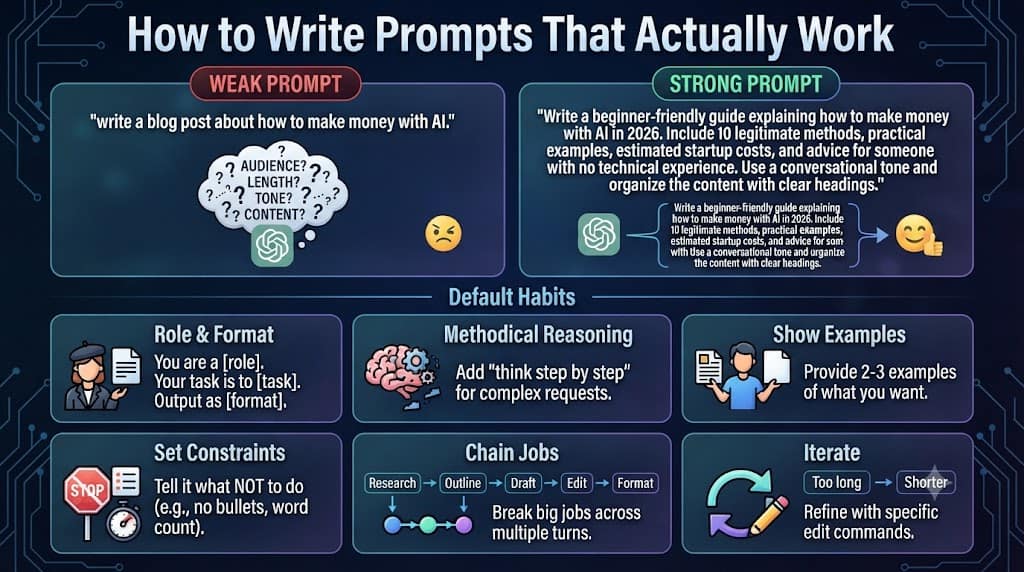
“Write a beginner-friendly guide explaining how to make money with AI in 2026. Include 10 legitimate methods, practical examples, estimated startup costs, and advice for someone with no technical experience. Use a conversational tone and organize the content with clear headings.”
The extra sentence costs you almost nothing to write and saves several rounds of revision. A few patterns worth building into your default habits:
- Give it a role and a format: “You are a [role]. Your task is to [task]. Output as [format].” This simple structure reliably improves response quality.
- Add “think step by step” to complex requests to nudge the model toward methodical reasoning.
- Show examples: Two or three examples of exactly what you want, before you ask, cuts down on misinterpretation dramatically.
- Tell it what NOT to do: Constraints like “do not use bullet points” or “no longer than 150 words” often improve quality more than positive instructions alone.
- Chain big jobs across turns: Research, then outline, then draft, then edit, then format — one prompt per stage.
- Iterate instead of restarting: Tell it “tighten the opening” or “cut 30% “ rather than regenerating from zero.
- Match the model to the task: Use Instant for quick drafts; switch to Thinking for long-form, research-backed work.
Common Mistakes to Avoid
- Treating it like a search engine: A one-line question with no context gets a generic answer. Context is the key lever.
- Regenerating instead of revising: Iterating on an existing draft with specific feedback almost always beats asking for a fresh version.
- Ignoring the model picker: Sticking with the default model for every task means overpaying in time on simple things and underpowering complex ones.
- Skipping Custom Instructions and Memory: These are free, one-time setup steps that compound in value across every future conversation.
- Not verifying factual claims: Spot-check specific figures, dates, or claims before publishing, especially for time-sensitive topics.
Frequently Asked Questions
Is ChatGPT free to use?
Yes. A free plan exists with access to an Instant-tier model; paid plans unlock higher usage limits, more advanced models, and features like extended Projects and Advanced Data Analysis quotas.
Which model should I use for writing a long article?
A Thinking-tier model is generally the better choice for long-form or research-backed writing, since it plans structure before generating text, keeping multi-section pieces coherent from start to finish.
Can ChatGPT replace a human writer or editor?
Not fully. It’s best treated as a collaborative drafting and editing assistant — it accelerates the process, but combining its output with human judgment, fact-checking, and domain expertise produces the strongest final result.
Does ChatGPT know about current events?
Yes, through its web browsing feature, which returns real-time results with source citations, though verification is still recommended for anything relied upon for publication or crucial decisions.
Conclusion
ChatGPT in 2026 is a genuinely different product from the one that launched in 2022 — featuring a simplified, more capable model lineup, a much deeper feature set, and enough flexibility to function as a real daily workflow tool rather than a novelty chatbot. The gap between mediocre and excellent results rarely comes down to the tool itself; it comes down to picking the right model for the task, using built-in features (Memory, Projects, Canvas, Custom Instructions), and writing prompts that provide context instead of leaving ChatGPT to guess. Start small: set your Custom Instructions today, pick one feature from this guide you haven’t tried, and build your prompts around the role-task-format pattern.