
You have probably used Gemini in the Google app or on the web. But behind that chat window sits something far more powerful: the Gemini API, the interface that lets developers and creators build Gemini’s intelligence into their own apps, websites, and tools.
If you have ever wondered how apps add AI chat, image generation, or document understanding without building their own AI model, the answer is usually an API like this one. This guide explains what the Gemini API is, what you can build with it, how to get an API key, and how to make your first call — no advanced coding experience needed to follow along.
What Is the Gemini API?
The Gemini API is Google’s programming interface for its Gemini family of AI models. In plain terms, it is a way for your code to send a request to Google’s servers — a question, a document, an image, or a video — and get an AI-generated response back.
Google’s own documentation describes it as the way to “go from a quick prompt to production apps and agents with the Gemini API,” covering complex coding and multimodal reasoning, image generation with Nano Banana models, video generation, and voice and video streaming through the Live API.
You do not need to train a model or own powerful hardware. Google runs the model; you simply call it. Your app sends text (or an image, audio, or video file), the Gemini model processes it, and your app receives the result — usually in a fraction of a second. Read the Gemini API docs to explore the full reference.
Gemini API vs the Gemini App: What’s the Difference?
People often confuse the two, so here is the distinction:
- The Gemini app (gemini.google.com or the mobile app) is a finished product for chatting with Gemini. You type, it answers. It is designed for people.
- The Gemini API is a building block for developers. It lets your own software use Gemini models inside your product, with your own interface, your own logic, and your own users. It is designed for code.
If you only want to ask Gemini questions, use the app. If you want to add AI to something you are building — a chatbot on your website, a tool that summarises PDFs, an app that generates images — you need the API.
What Can You Build with the Gemini API?
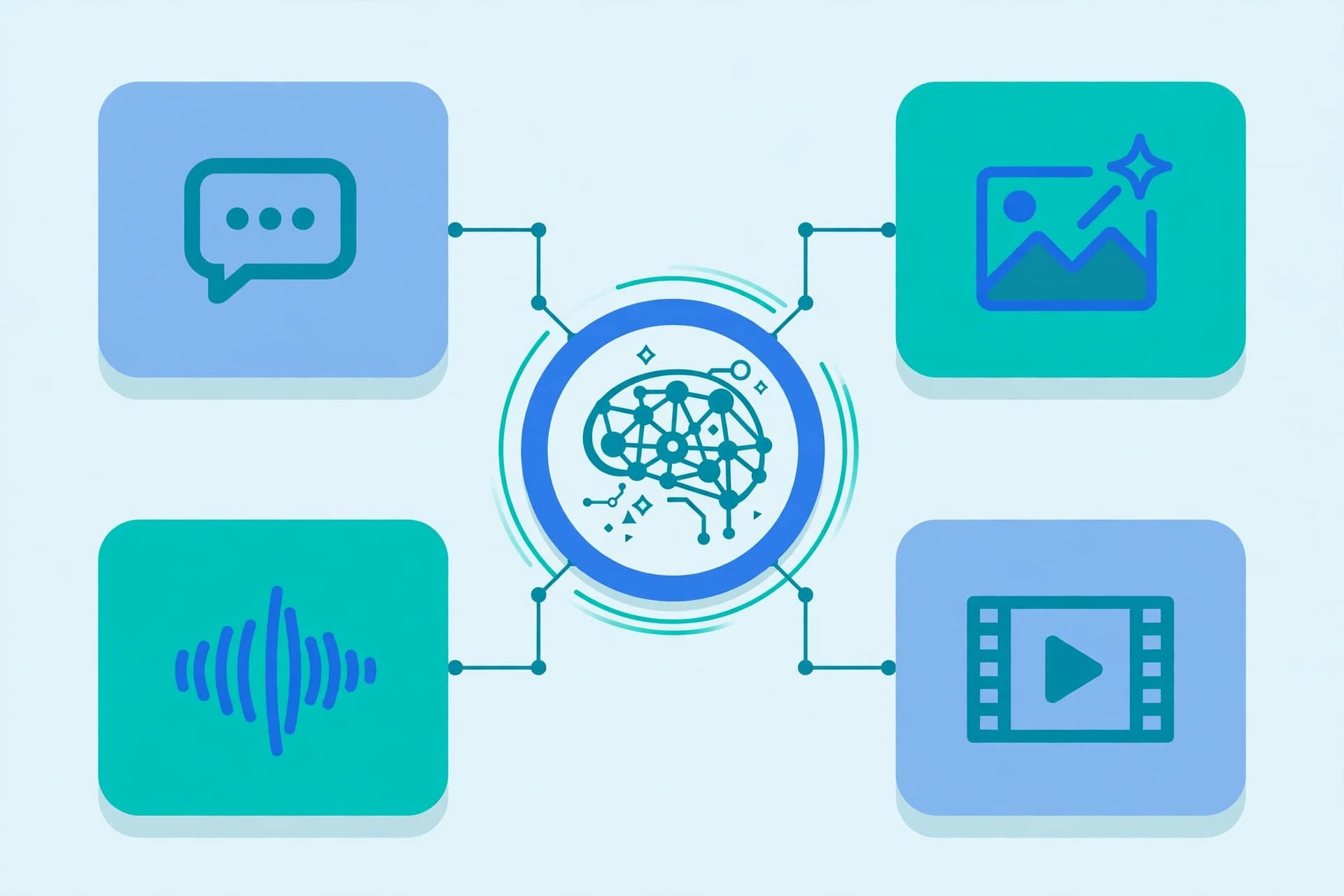
The Gemini models are multimodal, which means they can work with more than just text. Here is what the API supports, according to Google’s documentation:
- Text generation and chat. Drafting, summarising, translating, answering questions, and multi-turn conversations.
- Coding assistance. Explaining code, finding bugs, generating functions, and reviewing pull requests.
- Image generation and editing. The Nano Banana image models generate and edit images from text and image prompts — the same technology behind our Gemini Nano Banana guide.
- Video generation. Models such as Gemini Omni can generate short video clips from a text prompt.
- Audio and speech. Text-to-speech generation and understanding spoken input.
- Document understanding. Reading PDFs, spreadsheets, and images, then answering questions about their contents.
- Live, real-time interaction. The Live API streams voice and video back and forth, for conversational experiences that feel immediate.
- AI agents. Multi-step agents that plan, call tools, and complete tasks on a user’s behalf.
The common thread is that one API key gives you access to all of these capabilities, and you only use the ones your project needs.
How to Get a Gemini API Key

Getting started is free for most experiments. Google AI Studio provides a free tier with usage limits, which is enough for learning and small projects. Follow these steps:
- Go to Google AI Studio. Open Google AI Studio and sign in with a Google account.
- Open the API key page. Go to the API key page in AI Studio and click to create a new key.
- Create your key. Give the key a name so you remember which project it belongs to, then copy it immediately — you will not be able to see the full key again later.
- Store it safely. Save the key as an environment variable (for example, GEMINI_API_KEY) rather than pasting it into your code or sharing it publicly. Anyone with your key can use your quota.
- Check the free tier limits. Free-tier usage comes with rate limits (requests per minute and per day). If your app grows, Google offers paid usage through a billing account — check the current pricing page in the docs before launching anything public.
Never commit an API key to a public code repository, and rotate it (create a new one and delete the old one) if you think it has been exposed.
Your First Gemini API Call in Python

The official SDKs are available for Python, JavaScript, Java, and Go, plus a plain REST endpoint for any other language. Here is a minimal first call in Python, adapted from Google’s official documentation:
from google import genai

client = genai.Client()  # reads GEMINI_API_KEY from your environment

interaction = client.interactions.create(
    model="gemini-4-carbon",
    input="Explain how AI works in a few words",
)

print(interaction.output_text)
What is happening here:
- The google-genai SDK is imported and a client is created, using the API key stored in your environment.
- You choose a model — the docs list the current models, so check there for the latest names before you build.
- You send your prompt as the input, and the model returns a response object you can print, display, or store.
If you prefer JavaScript, the same call works with the @google/genai package, and the REST endpoint is https://generativelanguage.googleapis.com/v1beta/interactions with your key in the x-goog-api-key header. For a full working example with more features, the official documentation at ai.google.dev is the best place to continue — it stays current as models and SDKs change.
Related reading: Best AI Coding Tools in 2026 and AI Content Generator Complete Guide.
Gemini API Pricing: Free Tier and Paid Use
At the time of writing, the Gemini API can be used for free through Google AI Studio, within rate limits. That free tier is designed for learning, prototypes, and small projects.
For production use, Google charges on a pay-as-you-go basis once you enable billing, with prices that vary by model and by how much text, image, or video you process. Because model names and prices change often, the right move is to check the pricing page linked from the official docs before you commit to a model for a real product — and to set usage limits and billing alerts so a bug in your code cannot run up an unexpected bill.
A good habit for any API project: start on the free tier, measure how much you actually use, and only enable billing when you know your real costs.
Practical Tips for Using the Gemini API Well
- Write specific prompts. The model performs far better with a clear instruction (“Summarise this contract in five bullet points, in plain English”) than with a vague one (“Summarise this”).
- Pick the right model for the job. Lighter, faster models suit simple chat and classification; the most capable models suit hard reasoning and long documents. The docs list the current line-up with context windows and capabilities.
- Keep responses structured. Asking for JSON or a fixed format makes the output easy for your code to use reliably.
- Handle errors gracefully. API calls can fail — network issues, rate limits, or invalid keys. Your code should catch errors and retry sensibly instead of crashing.
- Respect rate limits. The free tier limits how many requests you can make per minute. Add small delays or a queue if your app makes many calls at once.
- Validate important outputs. AI output can be wrong. If your app shows model answers to users — especially about health, money, or legal topics — add checks and a clear disclaimer.
Troubleshooting Common Gemini API Problems
- “API key not valid” errors. Double-check that the key is copied in full, that it is set as an environment variable, and that it has not been deleted in AI Studio. Create a fresh key if in doubt.
- Rate limit (429) errors. You have hit the free-tier limit. Wait a minute, reduce how often you call the API, or move to a paid plan if the usage is genuine.
- “Model not found” errors. Model names change as Google releases new versions. Check the current model list in the official docs and update the model name in your code.
- Empty or cut-off responses. Long prompts and long answers use more tokens. Shorten the input, or use a model with a larger output limit.
- Slow responses. Large multimodal inputs (video, long PDFs) take longer. Consider processing them asynchronously instead of making the user wait.
Frequently Asked Questions
What is the Gemini API used for?
The Gemini API lets developers add Google’s Gemini AI models to their own apps and websites — for chat, writing, coding help, image and video generation, document analysis, and building AI agents.
Is the Gemini API free?
Yes, for most learning and small projects. Google AI Studio offers a free tier with rate limits. Heavier or production use requires a billing account and is charged pay-as-you-go, so check the current pricing in the official docs.
How do I get a Gemini API key?
Sign in to Google AI Studio, open the API key page, and create a new key. Store it as an environment variable and never share it publicly or commit it to a public code repository.
What is the difference between the Gemini API and the Gemini app?
The Gemini app is a finished chat product for people. The Gemini API is a developer tool that lets your own software call Gemini models and use the results inside your own product.
Which programming languages work with the Gemini API?
Google provides official SDKs for Python, JavaScript, Java, and Go, and a REST endpoint that works from any language that can make HTTPS requests.
Conclusion
The Gemini API is the simplest way to put Google’s most capable AI models inside something you are building. One free API key from Google AI Studio opens up text, image, video, audio, and document understanding — and the official SDKs mean your first working call is only a few lines of code away. Start with the free tier, build something small — a summariser, a chatbot, an image tool — and learn the costs and limits before you scale. The models and prices will keep changing, but the pattern stays the same: a clear goal, a specific prompt, and the right model for the job. The official documentation at ai.google.dev is the one source to keep bookmarked as you build.